Set your club’s colors and logo
Paint Club Pro in your club’s colors and show its logo on Home.
A club admin can give Club Pro the club’s own look: a main color, a second color and a logo. Coaches and parents who belong only to your club then see them in the app. Only the club’s admins can change the look.
Open the Club look screen
- Open the Menu, then Club. You can also tap your club under Clubs you run on Home.
- Tap Club look.
Choose your colors
- Under Colors, tap one of the Ready-made colors, such as Navy and gold, to fill in both colors at once. The pair you picked shows a checkmark. You can still change either color after.
- Or type your Main color as a hex code, such as
#1f4e9c. It fills buttons and the band on Home. - Type a Second color if you have one. It colors links, selected chips and dots. Leave it empty to use the main color for those too.
- The swatch inside each field shows the color, and the Preview at the top shows the band, a chip, a link and a button in your colors.
To go back to Club Pro’s own blue and orange, tap Use Club Pro’s colors. It empties both fields; the change takes effect when you save.
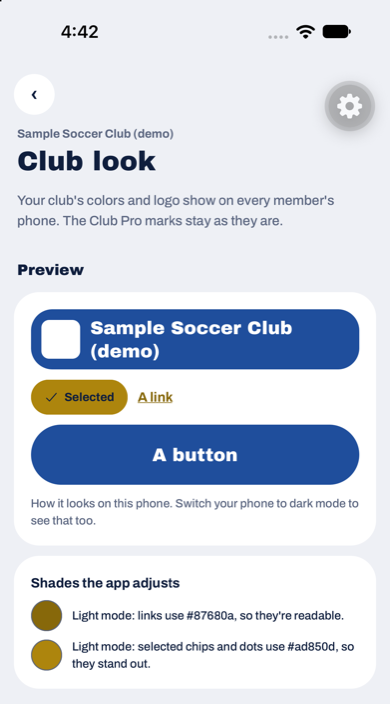
Why some shades change
A color needs to be a hex code: anything else shows “Enter a hex color, like #1f4e9c.” Any hex color can be saved, however light or dark. Where a color would be hard to read, such as a pale yellow link on a white screen, the app uses a darker or lighter shade of it. Shades the app adjusts lists each one, for light mode and dark mode, so you know what members see. The preview shows your phone’s own mode; switch your phone between light and dark mode to check both.
Add a logo
- Under Logo, tap Choose a logo and pick an image from your photos.
- Crop it to a square. A square PNG or JPEG works best.
The logo shows beside your club’s name on Home. To change it, tap Choose another logo. To take it off, tap Remove the logo. Changed your mind before saving? Tap Keep the logo.
Save
Tap Save the look. Your own app changes right away, and members’ apps pick it up the next time they refresh Home.
The Club Pro name and marks stay as they are. Only your colors and logo change.
If another admin changed the logo while you were editing, the app says so and saves nothing. Check the logo, then tap Save the look again to use yours.